

Moderation Guide for Volunteer Reviewers
Thank you for being a volunteer reviewer for Ways to Connect!
Your contribution helps keep up with the flow of submissions, maintain quality on the site, and help us towards our goal of Ways to Connect being a community-owned resource! As with any crowdsourcing project, moderation helps ensure quality while also providing an opportunity to assist volunteers with guidance and encouragement.
We’ve provided tips and instructions below on how to moderate submissions to Ways to Connect.
Step-by-Step Guide
Getting Started with Moderation
The submission review process takes 5 steps. This guide covers each of these steps.
Click on the steps in the left-hand menu to proceed.
Navigate to Unreviewed Submissions
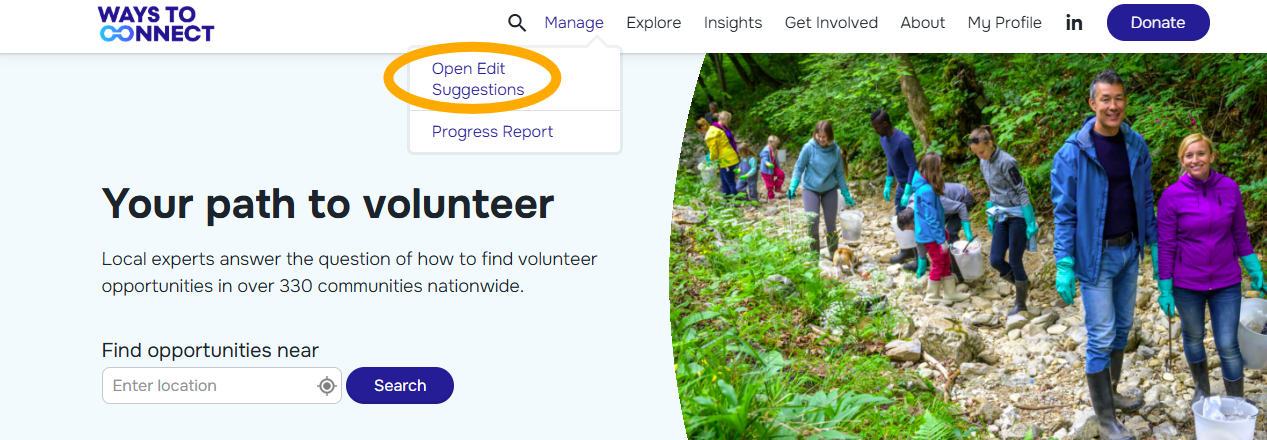
To start reviewing, you must be signed in as a “Moderator” or “Admin” account. Under the “Manage” menu, select “Open Edit Suggestions”.
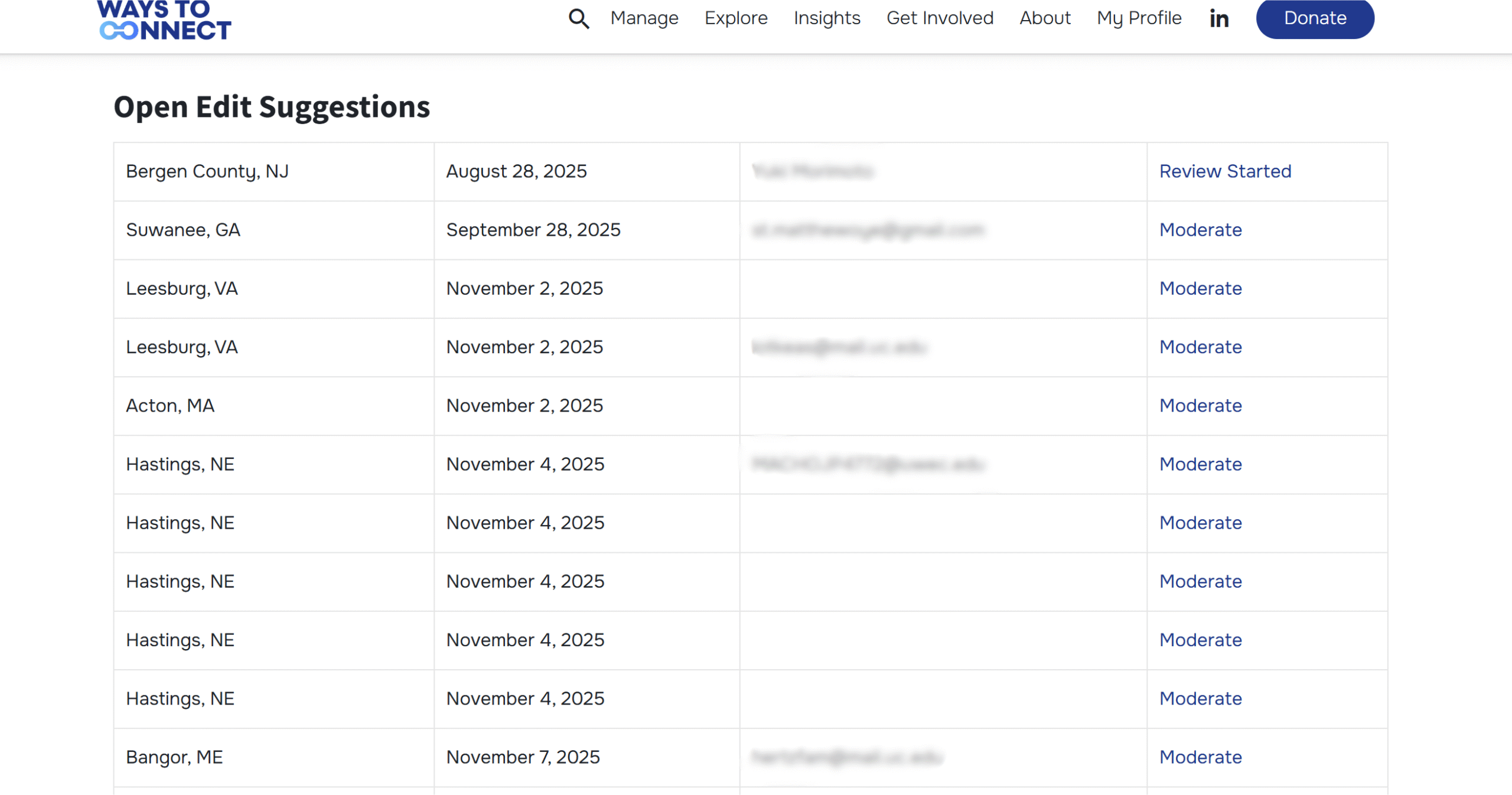
This will bring you to a list of all of the volunteer submissions that have not yet been reviewed. To start a review, click on “Moderate” next to any submission.
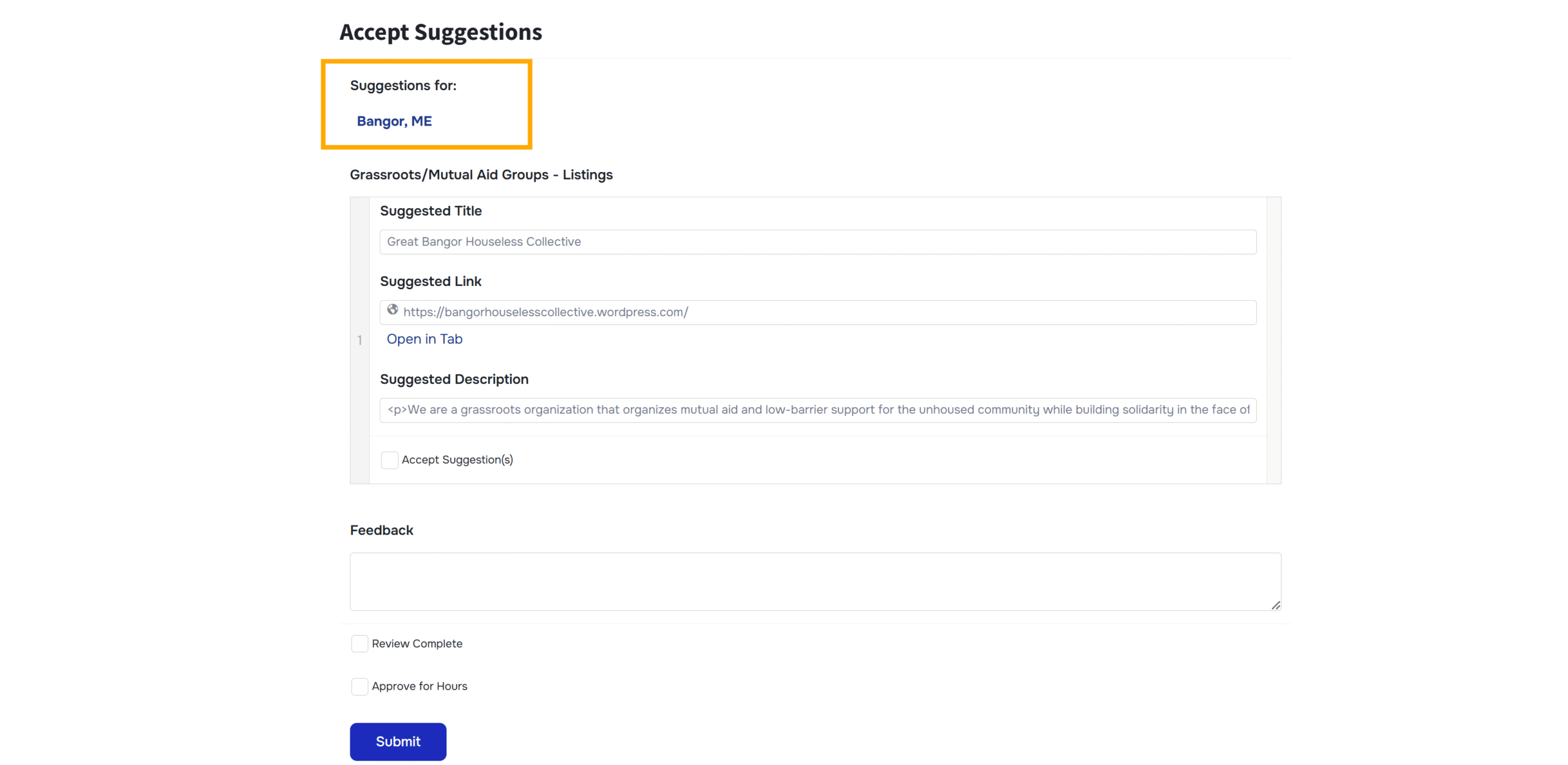
Review Submission
Link to Community Page
While not necessary, it is often helpful to open the community page in another tab while completing the review. This will allow you to compare what is being suggested to what is already on the community page.
Submission Sections
Next you will see all of the listings for a section that the volunteer is contributing to.
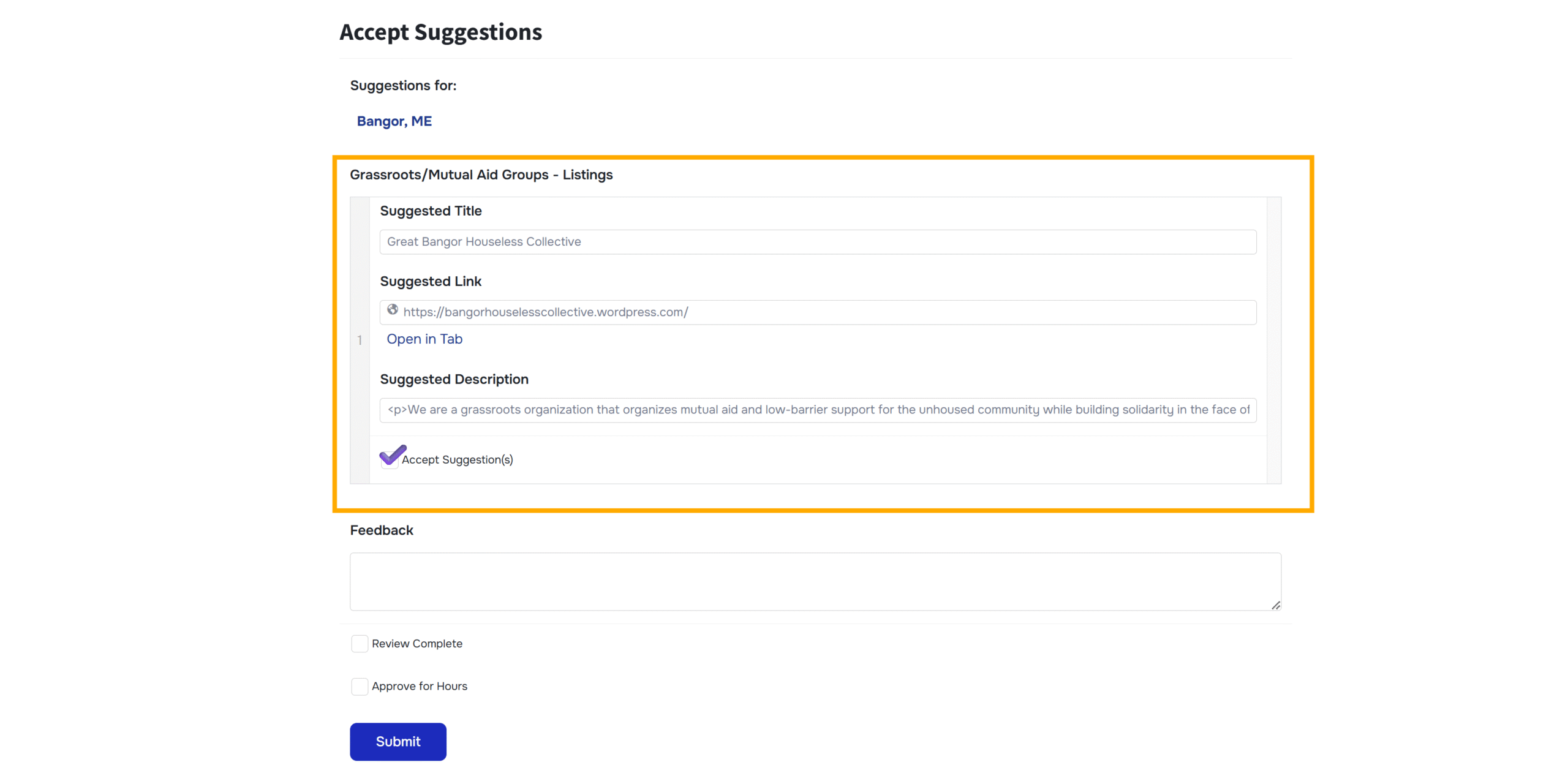
Most volunteers tend to submit submissions to one section at a time:
- Volunteering websites
- Service Clubs
- Grassroots/Mutual Aid Groups
- Local Organizations*
Each section has different review guidance, see relevant “How to Review” steps for more detailed instructions.
After review: If the suggestion passes review, you must click “Accept suggestion(s)”. If you complete the form without checking this box, the information will not appear on the community page.
*We are currently rebuilding our review process for local organizations – so these types of contributions will be reintroduced Summer 2026 for reviewers to support. In the meantime, approvals are handled by staff.
How to Review Volunteer Opportunity Platforms / Volunteering Websites
When reviewing submissions for volunteering websites, use the following decision tree:
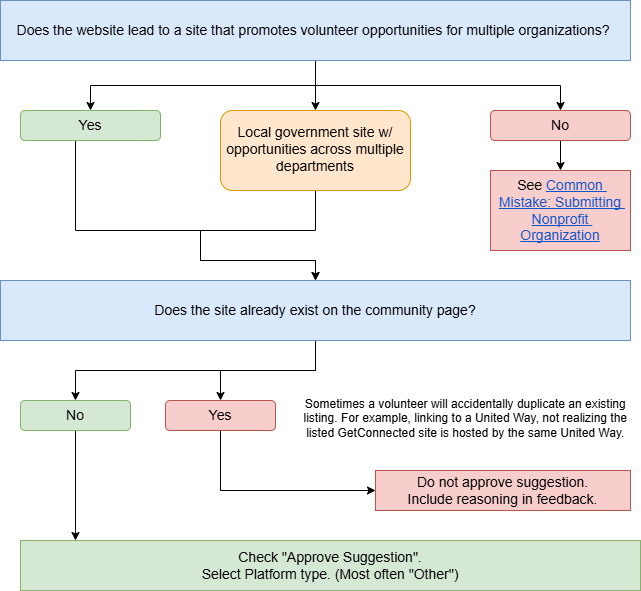
Common Mistake: Submitting Nonprofit Organization
This section can be challenging for volunteers as they often have interpreted this as any website that shows volunteering opportunities such as a single nonprofit. We’ve made changes to the contribution process to help reduce this confusion, however, you may still find situations where volunteers submit single organizations to this section. These should be “Local Organizations” instead.
In the example below, the volunteer suggested the Massachusetts SPCA as a Volunteer Opportunity website. It’s a good suggestion for the site, but it should be under “Local Organizations” instead.
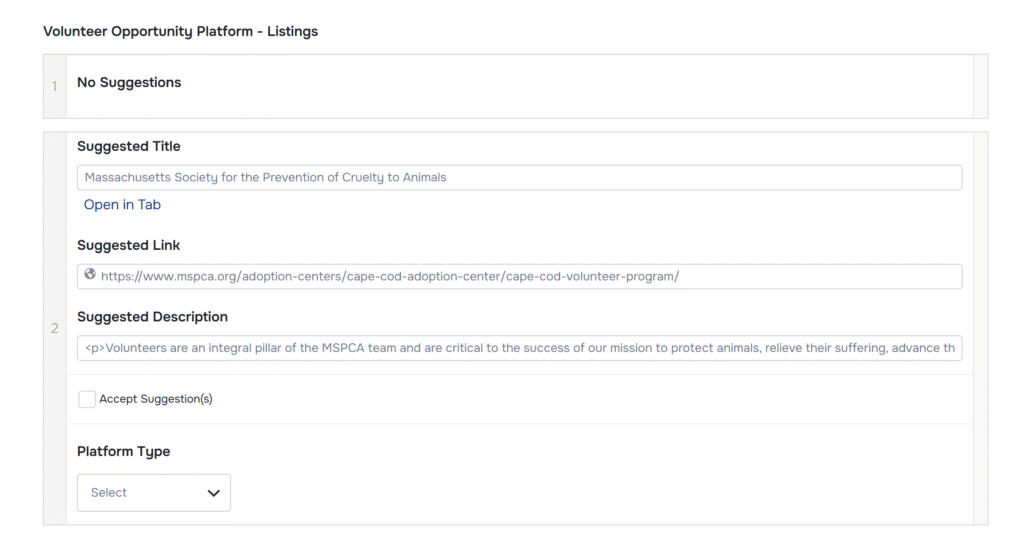
How to handle this situation:
1. Open community page in another tab
In the community page, scroll down to “Local Organizations” and select “Suggest Organizations to be Added”. (Alternatively, click “Explore all organizations”, then click the “Suggest Organizations to be Added” button in the map view.)
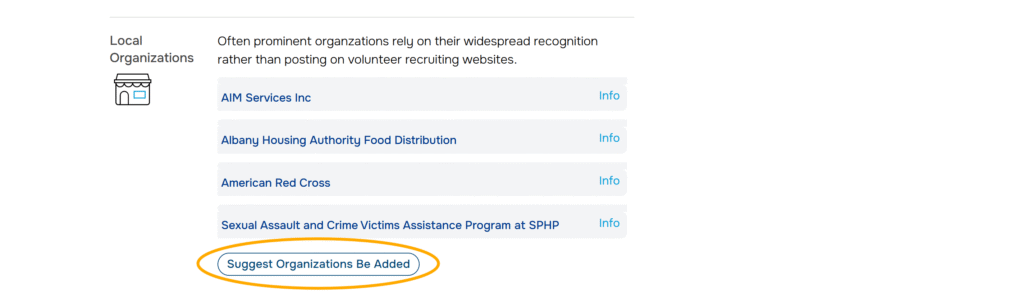
2. Copy information to correct section.
Copy over the information from the volunteer’s original submission form to the edit field. Submit.
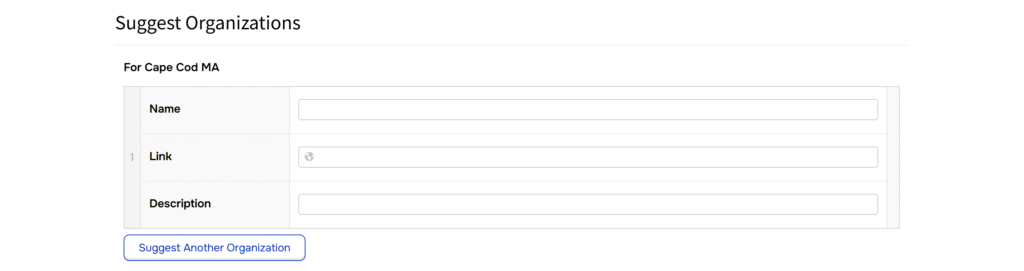
3. Complete the volunteer submission form
In the volunteer’s submission form, do not check “Accept Submission”. However, you can approve hours and should also provide feedback. In this case, common feedback would be along the lines of “Since volunteer opportunity platforms post opportunities for several organizations, I added Massachusetts SPCA to “Prominent Organizations” instead.”
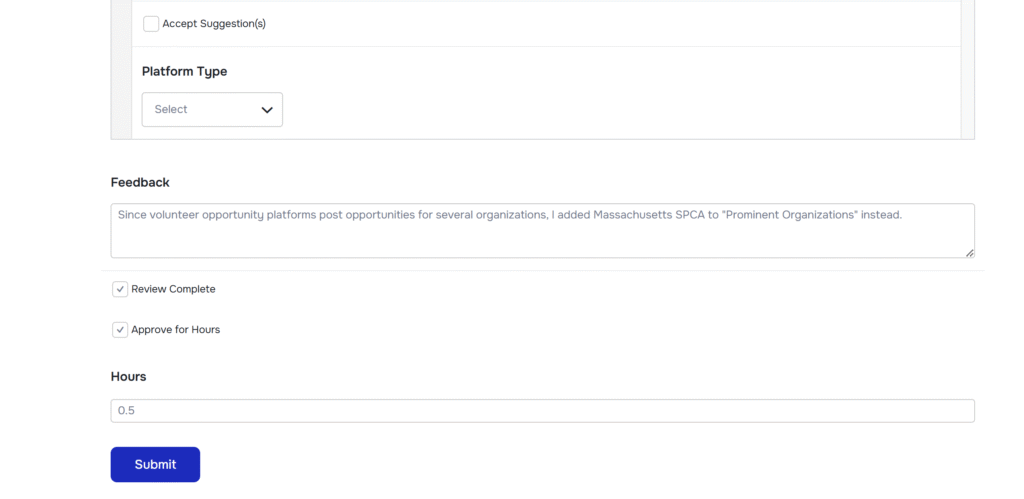
Mark review as completed before hitting submit.
How to Review Service Clubs
Service Clubs are the simplest section to review:
- Check that the website is correct (volunteer sometimes provide a URL that is not a direct link to the organization) – Facebook or similar sites are acceptable if the group does not have a website.
- Make sure that it meets the definition of a service club
Note: Boys and Girls Club and similar organizations are sometimes submitted because of the name, but do not actually fit the description.
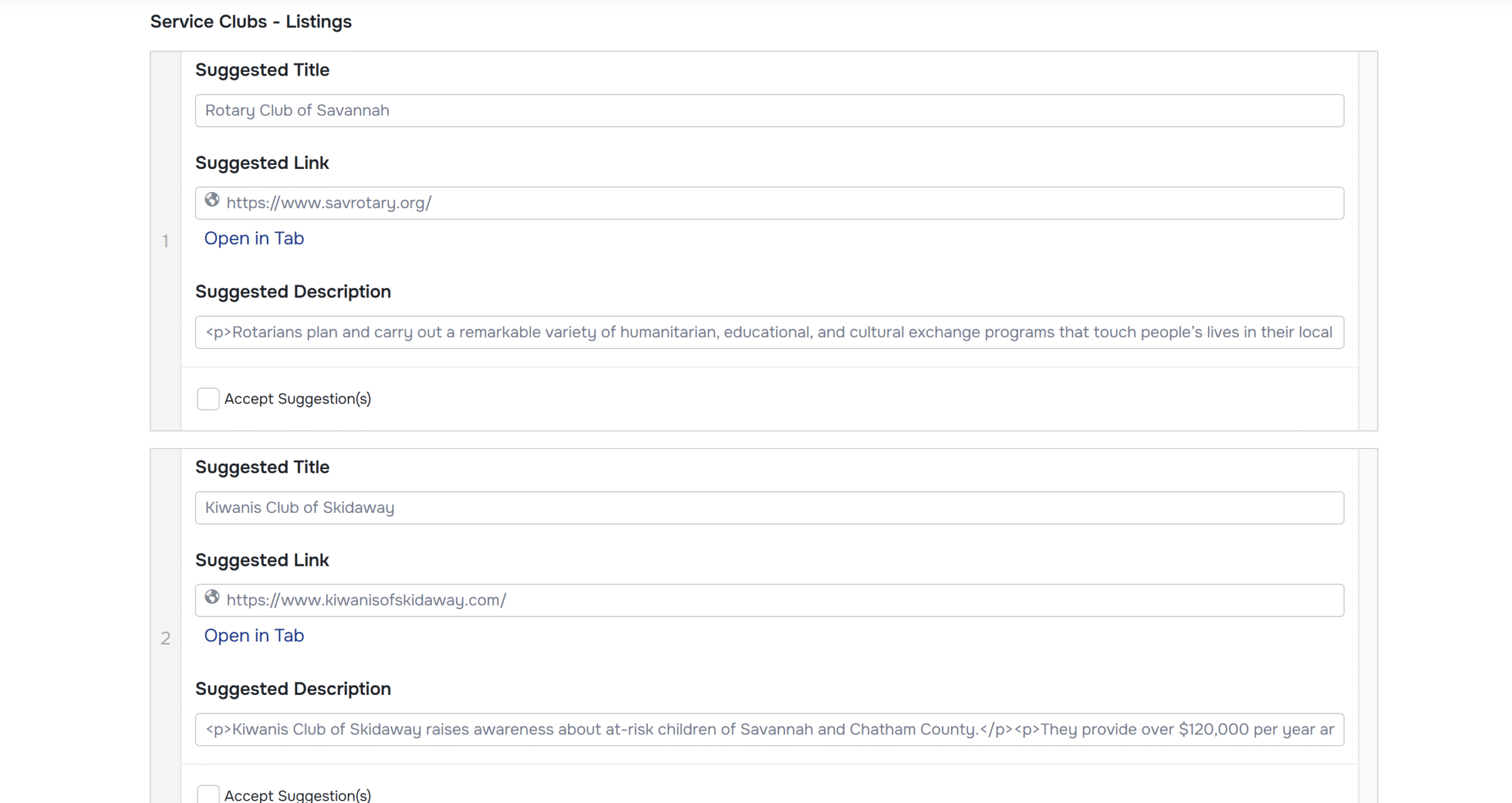
Here’s an example of approved service clubs:
How to Review Grassroots & Mutual Aid Organizations
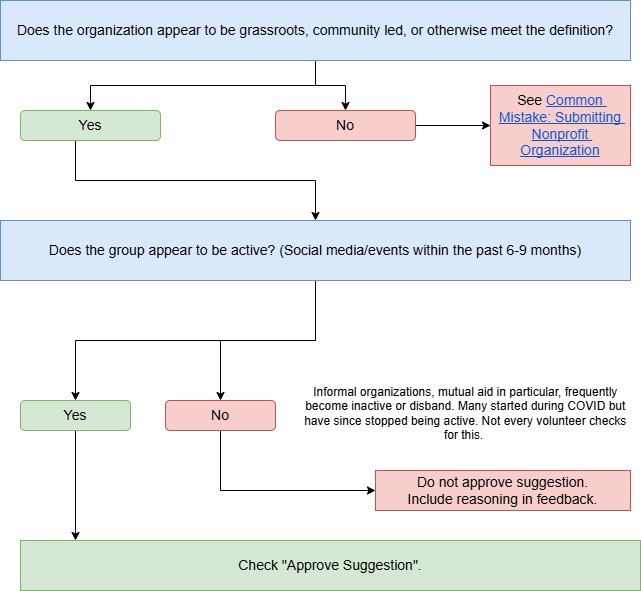
When reviewing submissions for mutual aid/grassroots organizations, use the following decision tree:
Here’s an example of an approved Grassroots/Mutual Aid submission:
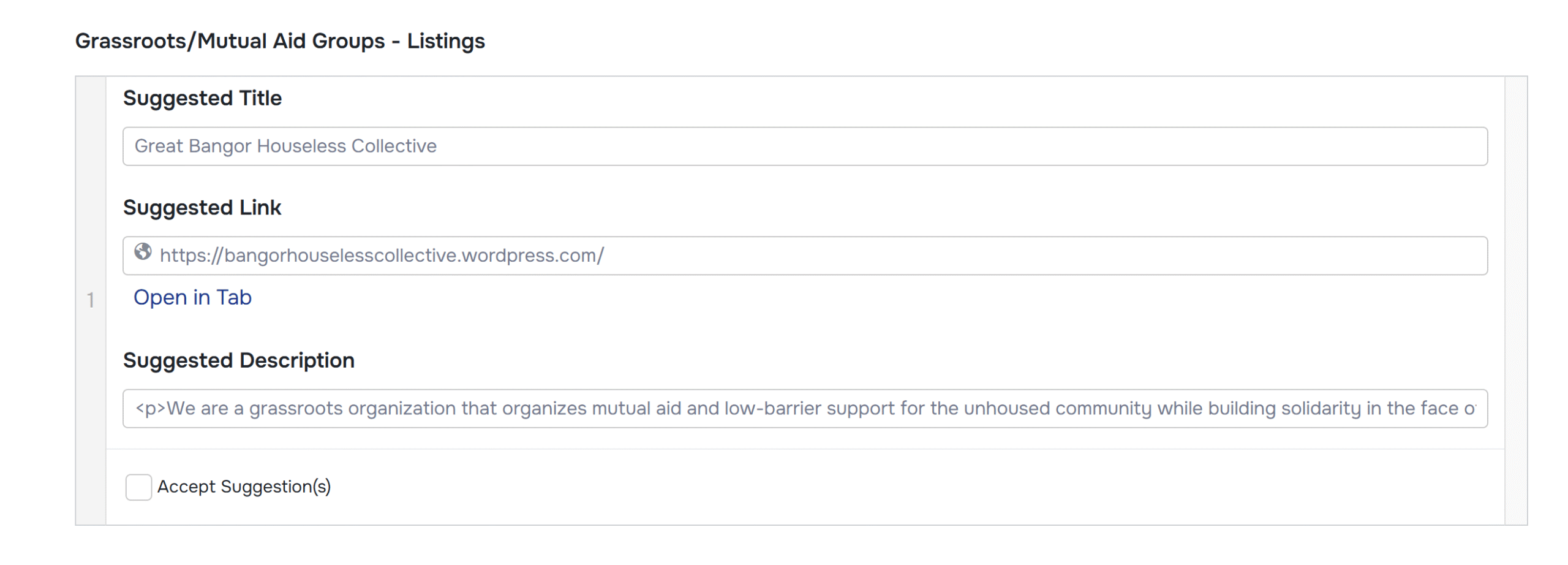
Link to organization: https://bangorhouselesscollective.wordpress.com/
Common Mistake: Submitting Formal Nonprofit Organization
Sometimes, volunteers are submitting formal nonprofit organizations that do not quite meet the definition of a “bottom up”/community-led group. These should be “Local Organizations” instead.
How to handle this situation (steps are borrowed from the Volunteer Opportunity platform step but it is effectively the same):
1. Open community page in another tab
In the community page, scroll down to “Local Organizations” and select “Suggest Organizations to be Added”. (Alternatively, click “Explore all organizations”, then click the “Suggest Organizations to be Added” button in the map view.)
2. Copy information to correct section.
Copy over the information from the volunteer’s original submission form to the edit field. Submit.
3. Complete the volunteer submission form
In the volunteer’s submission form, do not check “Accept Submission”. However, you can approve hours and should also provide feedback. In this case, common feedback would be along the lines of “Since volunteer opportunity platforms post opportunities for several organizations, I added Massachusetts SPCA to “Prominent Organizations” instead.”
Mark review as completed before hitting submit.
Feedback
Not every submission requires feedback. However, this is an opportunity to provide positive correction if the volunteer needs it, or to provide positive reinforcement. Always provide feedback in an encouraging manner!
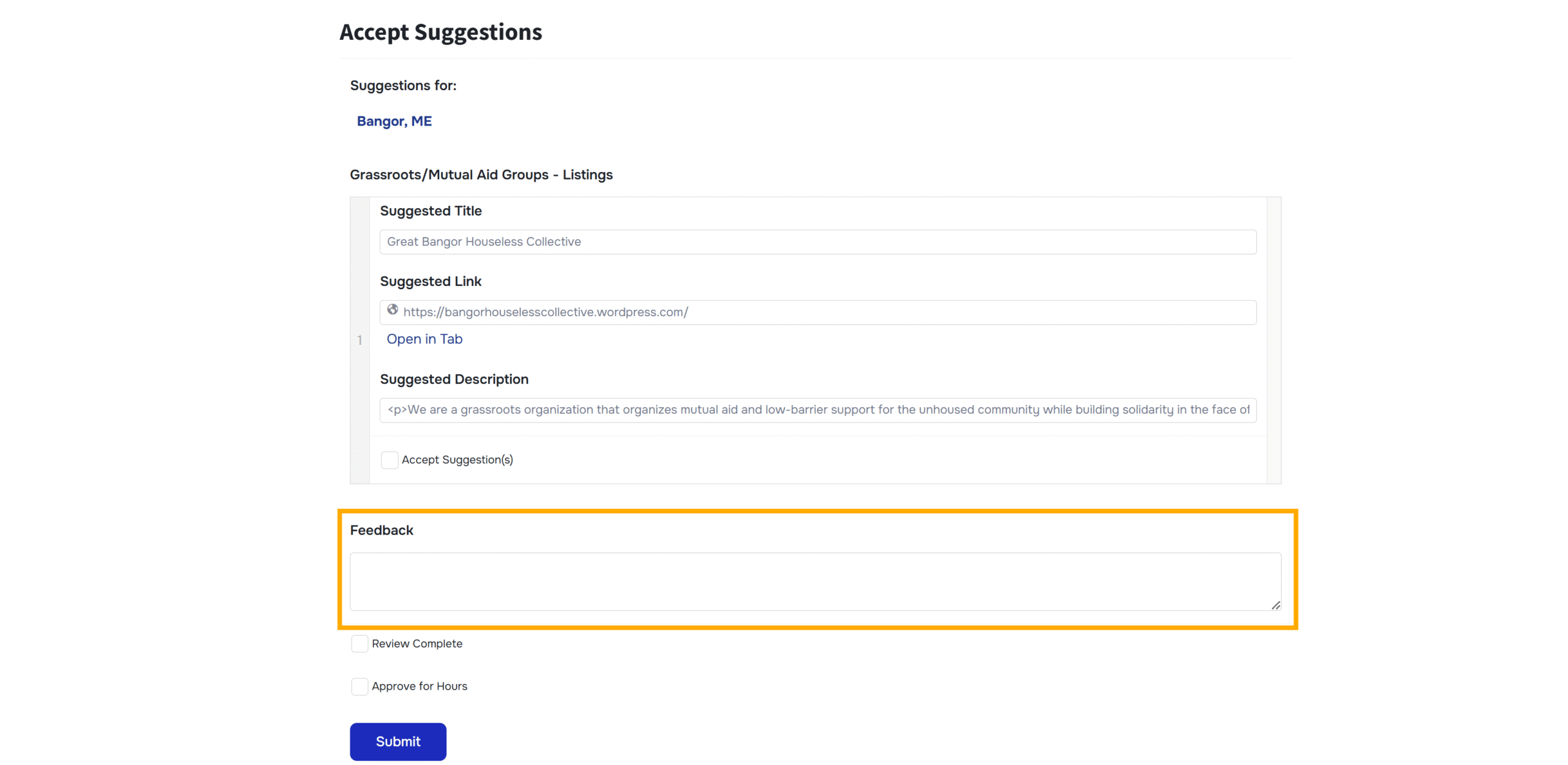
Try to be specific in the feedback when referring to organizations as volunteers cannot go back in to see what they submitted.
Conduct Final Checks
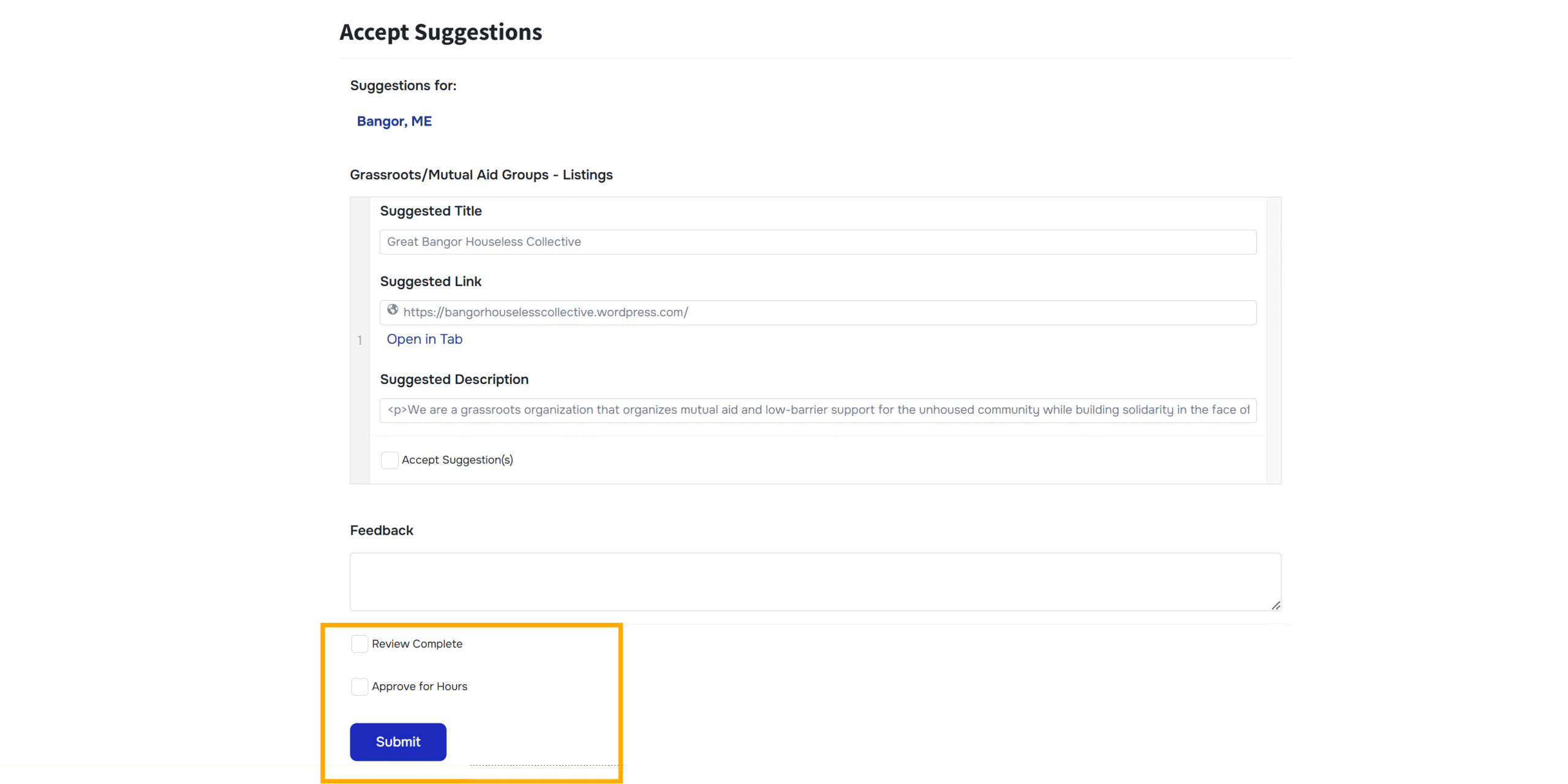
Final Checks
Once completing review, check off “Review Complete”. If you hit submit without checking this off, the submission will remain in the “Open Suggestions” list.
If a volunteer provided any acceptable suggestions within the form, check “Approve for Hours”. If a submission was not accepted but it was completed in good faith, check “Approve Hours” anyway.
99% of forms will meet this criteria. If a volunteer is making a repeated mistake or you believe they are taking advantage of the approved hours structure, reach out to the Inspiring Service team.
Clicking on “Approve for Hours” will open a field to enter the amount of time approved. At the moment, the default time is 0.5 hours per submission, regardless of the number of suggestions within a form.
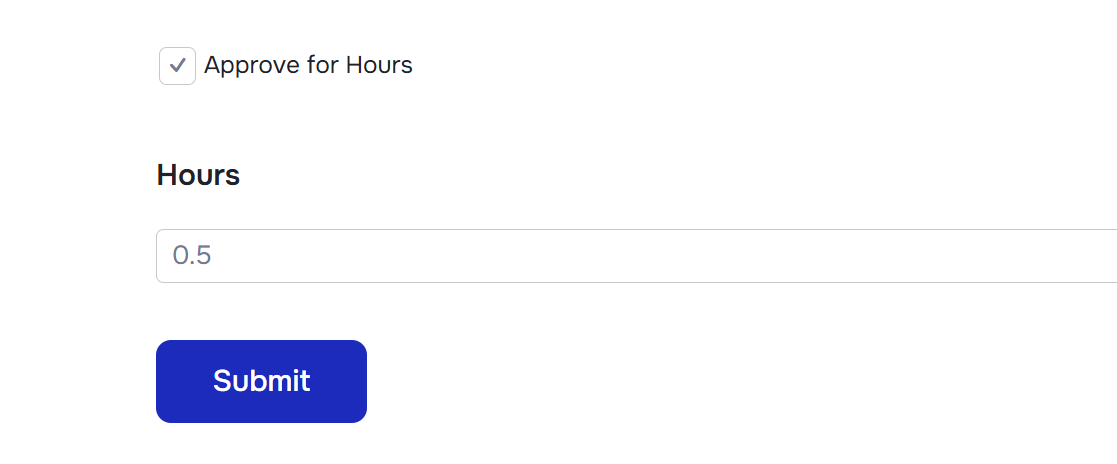
If a single form covers multiple sections (e.g. Service Clubs AND Mutual Aid organizations), then we count 0.5 hours per section per submission.
Submit
Once you hit submit, the changes will go live to the community page. Return to the Management page to complete the next submission.